Porcelain Skin
Have you been dubbed the “Photoshop Whiz” in your family and have been put in the hot seat to make Aunt Matilda look youthful and vibrant? Or perhaps you are browsing through the shots you’ve recently taken of a client and now realize that the lighting was a bit too harsh. Worry not, because this tutorial will have your photos looking smooth, clear, and give you airbrushed skin that still looks “au naturel.”
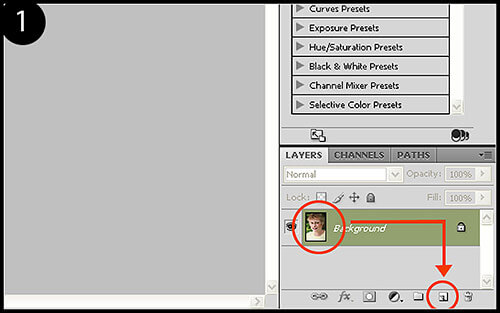
1. With your photo open in Photoshop, duplicate the current layer by clicking Layer > Duplicate. You can also duplicate your layer by simply clicking on the layer thumbnail in your layers palette, then drag-and-drop it onto the “new layer” icon located in the toolbar (Figure 1).
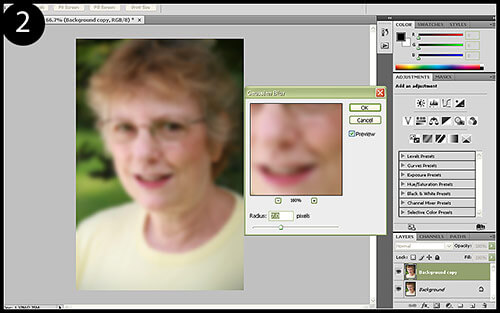
2. Click Filter > Blur > Gaussian Blur. The blur strength will vary by photo size since it is based on pixel count, so no uniform number will produce the same results on every photo. The goal is to blur the duplicate layer as much as possible while still retaining identifiable features (mouth, eyes, etc). Work the slider and try to get the blur as close as you can to Figure 2. Click OK and name the layer “airbrush” on your layers palette.
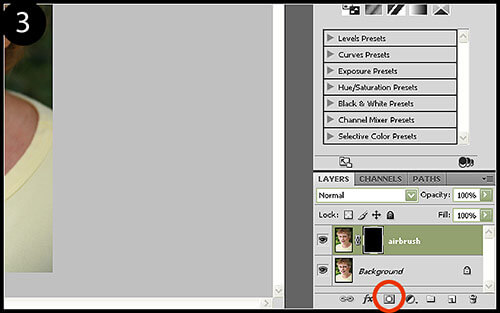
3. We are now going to apply a layer mask to hide the blurred layer so that we can mask out which parts of the face we want to airbrush. While holding down the ALT key, click on the Add Layer Mask icon in your layers palette toolbar (Figure 3).
4. This is where some common sense and an eye for detail goes a long way. If you’re not careful with how liberally you apply your airbrushing, you can easily take your photo down the trail of airbrushing horrors.
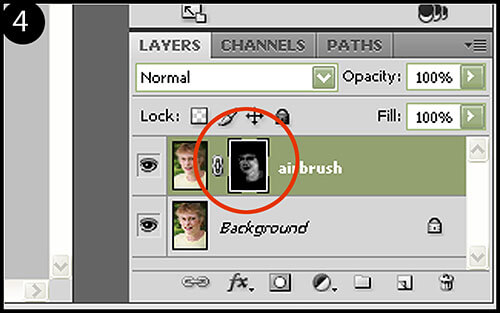
Click on your brush tool (keyboard shortcut : B), then click on the foreground/background color reversal arrow to make your foreground color white. With a very soft brush (one with a hardness of 0%) and an opacity level of around 10% to start, begin to brush around the face to bring out the airbrushed layer. Take care not to brush over the eyes, mouth, jawline/edges of the face, and the outline of the nose. You’ll want to retain these as it would look incredibly unnatural to have gaussian-blurred eyes and teeth. When finished, your layer mask should look something similar to the one seen in Figure 4.
If you think you have gone a bit too far, instead of switching the brush color back to black and deleting your previous brush strokes, try just lowering the opacity for the airbrush layer. It’s much simpler this way and you can bump it back up later if needed.
While you may impress people by making a 60 year-old-woman look 25, that goes into the realm of unnatural manipulation, not photo enhancement. The goal is to remove some common aging and skin imperfections while still keeping the photo representative of the actual model.
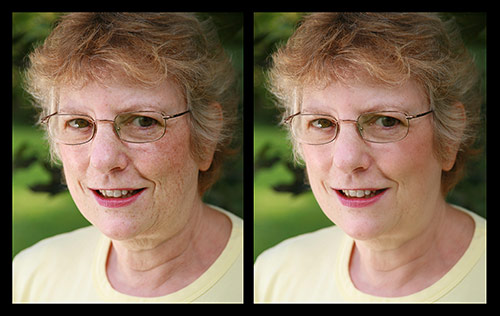
There you have it! An airbrushed portrait that simply looks enhanced, not altered. Surprise a few clients by adding this finishing touch to your workflow and watch them say what a wonderful job you did.

 某天DIGI老師收到了愛徒老張的來信,老張在信上寫道:「老師,近來可好?事情是這樣子的,那天我和小陳一同參加了外拍活動,他拍的麻豆容光煥發、笑容可掬,而我拍的麻豆印堂發黑,活像七月半卡到陰!老師,我該怎麼辦?」你和老張一樣,總是把麻豆拍得「歪夭夭」嗎?別擔心,今天DIGI老師,要來幫大家解解迷惑囉!跟著DIGI老師的步伐走,包你功力大增,輕輕鬆鬆拍得麻豆「心」~


